
RemoveTexts vs Shrinkpad
Side-by-side comparison to help you choose the right tool.

RemoveTexts
RemoveTexts is an AI tool that effortlessly removes text from images in seconds, making editing simple and accessible for everyone.
Last updated: March 11, 2026

Shrinkpad
Effortlessly batch compress images and videos on Mac, optimizing your creative assets in seconds with Shrinkpad.
Last updated: February 28, 2026
Visual Comparison
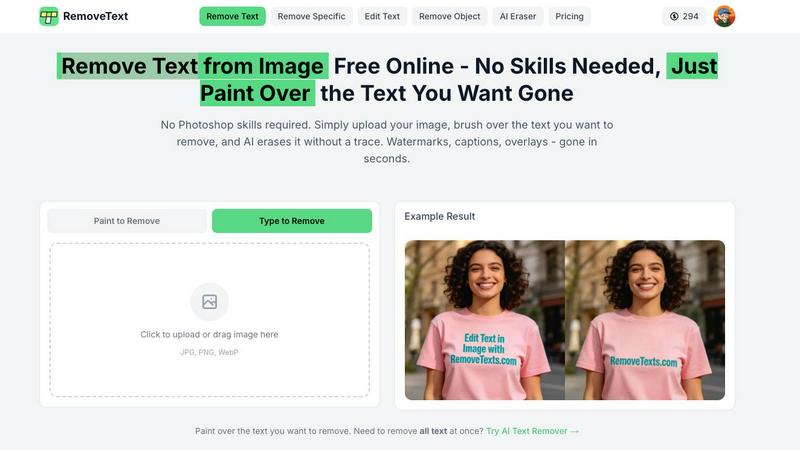
RemoveTexts
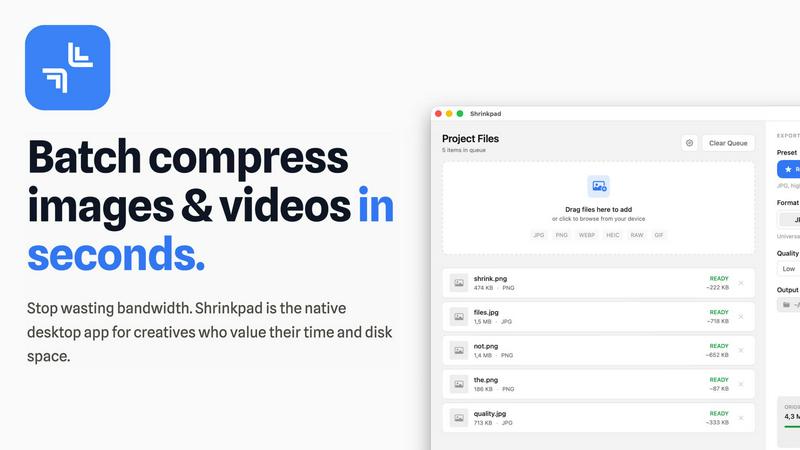
Shrinkpad
Feature Comparison
RemoveTexts
Paint to Remove
This feature provides users with precise control over the text removal process. By simply brushing over specific areas of text, users can accurately select the elements they want to erase. This ensures that only the intended text is removed, leaving the surrounding image intact.
Auto Remove All
For those who prefer a more automated approach, the Auto Remove All feature allows the AI to detect and remove every text element in the image with one click. This is particularly useful for users who need to process multiple images quickly and efficiently without manual intervention.
Edit & Replace Text
RemoveTexts goes beyond simple text removal by allowing users to edit existing text. This feature enables users to replace text in images while matching the original font style, making it perfect for those looking to update or customize visuals without starting from scratch.
Remove Objects
In addition to erasing text, RemoveTexts includes a powerful object removal feature. Users can easily remove unwanted items, logos, or visual elements from their images, enhancing the overall quality and focus of the composition.
Shrinkpad
Intelligent Compression
Shrinkpad features an intelligent compression algorithm that analyzes the visual complexity of each file, applying the optimal compression ratio without introducing artifacts. This ensures that users do not have to sacrifice quality for file size reduction.
Unlimited Batching
With Shrinkpad, users can process thousands of media files simultaneously without experiencing crashes. This feature is particularly beneficial for those working with large projects, as it allows for efficient handling of extensive queues, unlike many web-based tools.
One-Drop Import
The one-drop import feature simplifies the workflow by allowing users to drag and drop entire folders containing images and videos. Shrinkpad automatically detects all supported files within the folder, streamlining the compression process and saving valuable time.
Privacy-First Approach
Shrinkpad prioritizes user privacy by ensuring that all processing occurs locally on the user's Mac. This means that no files are uploaded to the cloud, giving users peace of mind that their sensitive assets are never exposed to external servers.
Use Cases
RemoveTexts
Cleaning Screenshots
RemoveTexts is an invaluable tool for anyone who frequently shares screenshots. Users can effortlessly remove unwanted text, such as chat bubbles or time stamps, ensuring that the focus remains on the content being shared.
Designing Marketing Materials
Marketers and designers utilize RemoveTexts to create clean and professional visuals. By removing watermarks or other distractions from product images, they can present their offerings in the best light possible, enhancing brand perception.
Redacting Sensitive Information
Legal professionals and businesses often need to redact sensitive information from documents and images. RemoveTexts provides a quick solution for removing text while maintaining the integrity of the background, ensuring compliance with privacy standards.
Enhancing Social Media Posts
Social media managers can leverage RemoveTexts to optimize their posts. Whether it's removing unwanted captions or adjusting text overlays, this tool allows for quick edits that enhance visual appeal and engagement on platforms like Instagram and Facebook.
Shrinkpad
Streamlined Creative Projects
Photographers and designers can leverage Shrinkpad to quickly compress large batches of images and videos, allowing them to focus more on the creative aspects of their projects instead of wasting time on file management.
Enhanced Website Performance
Web developers can use Shrinkpad to reduce the size of images and videos before uploading them to their websites. This optimization leads to faster load times and improved user experience, which can significantly impact SEO rankings and user retention.
Efficient Media Management
Content creators dealing with extensive collections of media files benefit from Shrinkpad's ability to batch process and compress multiple file types. This feature helps in organizing and managing assets more effectively, ensuring that they are always ready for use.
Simplified Asset Exports
Artists and designers using software like Figma or Photoshop can save time by exporting all assets at once. Shrinkpad automatically takes care of compression and renaming, making it easier to manage multiple output files without manual intervention.
Overview
About RemoveTexts
RemoveTexts is a revolutionary AI-powered image editing tool designed to simplify the process of removing unwanted text from images. Functioning without the need for advanced skills or software like Photoshop, RemoveTexts allows users to upload any image and efficiently erase text elements in seconds. This tool is perfect for those who frequently deal with images containing watermarks, captions, or other textual overlays that detract from the visual appeal. With its intuitive interface, even novice users can achieve professional-grade results. The main value proposition of RemoveTexts lies in its ability to seamlessly reconstruct backgrounds after text removal, ensuring that the final image appears natural and untouched. Trusted by over 100,000 creators, marketers, and designers worldwide, RemoveTexts is an essential tool for anyone looking to enhance their visual content quickly and effectively.
About Shrinkpad
Shrinkpad is a cutting-edge batch compression tool specifically designed for macOS users who require efficient handling of large media files. This powerful native desktop application caters to creatives such as photographers, designers, and content creators by allowing them to compress images and videos swiftly while maintaining their quality and privacy. Shrinkpad operates locally on the user's device, eliminating the need for cloud uploads or external servers, which means that sensitive media files remain secure. Users can achieve a remarkable reduction in file sizes by up to 90%, optimizing storage space and improving workflow. With seamless support for over 50 file formats and customizable settings, Shrinkpad is an essential tool for professionals seeking to streamline their creative processes and eliminate the hassle of managing oversized media files.
Frequently Asked Questions
RemoveTexts FAQ
What image formats does RemoveTexts support?
RemoveTexts supports JPG, PNG, and WebP formats, allowing users to upload images of various types for editing. The maximum file size accepted is 10 MB.
Is there a limit to how many images I can process?
There is no stated limit on the number of images you can process with RemoveTexts. Users can continuously use the tool to edit images as needed, making it highly efficient for bulk tasks.
Can I use RemoveTexts for commercial purposes?
Yes, RemoveTexts is suitable for commercial use. Many marketers and content creators utilize the tool to enhance images for advertisements, websites, and other promotional materials.
Does RemoveTexts leave any traces after text removal?
No, RemoveTexts uses advanced AI technology to ensure seamless background reconstruction, leaving absolutely no visible traces or artifacts after the text is removed. The results are professional and appear as if the text was never there.
Shrinkpad FAQ
Can I use Shrinkpad for free?
Yes, Shrinkpad offers a free starter version with essential tools for casual use, including standard compression for common formats.
What file formats does Shrinkpad support?
Shrinkpad supports over 50 file formats, including JPG, PNG, WEBP, AVIF, MP4, and MOV, making it versatile for various media types.
Does Shrinkpad support video compression?
Absolutely, Shrinkpad includes strong video compression capabilities, allowing users to reduce the size of video files efficiently.
How many files can I process at once?
With Shrinkpad, users can process an unlimited number of files in a single batch, making it highly efficient for large-scale projects and workflows.
Alternatives
RemoveTexts Alternatives
RemoveTexts is an innovative AI-powered image editing tool designed to remove text from images in a matter of seconds. This software falls under the category of image and photo editing, providing a user-friendly solution for anyone needing to clean up images without the complexity of traditional software like Photoshop. Users often seek alternatives due to various reasons, such as pricing concerns, specific feature requirements, or compatibility with different platforms. When searching for an alternative, it's essential to consider the ease of use, the range of features offered, and the quality of results produced. Finding the right alternative also hinges on understanding your specific needs. Some users may prioritize precise editing capabilities, while others might look for bulk removal options or support for multiple languages. The ideal option will align with your workflow and provide the tools necessary to achieve high-quality results efficiently. As the demand for image editing grows, exploring various alternatives can help ensure you find a solution that best fits your unique requirements.
Shrinkpad Alternatives
Shrinkpad is a batch compression tool designed specifically for macOS users, enabling efficient compression of images and videos while maintaining privacy and quality. As a native desktop application, it stands out in its category by allowing users to manage large media files without the overhead of cloud services, ensuring that all data remains securely on their devices. Users often seek alternatives to Shrinkpad for various reasons, including pricing, feature sets that better meet their needs, or compatibility with different operating systems. When choosing an alternative, it is essential to consider factors such as ease of use, the range of supported file formats, the balance between compression level and quality, and whether the tool operates locally to ensure data security.